
Programming logic controllers: how PLC code actually works
Programming logic controllers, explained: how a PLC reads inputs, runs your code and sets outputs, the standard languages, and how to start.
In this guide
If you've typed "programming logic controllers" into Google, you're in good company. It's one of the most common ways people search for this subject. The proper name is a programmable logic controller, or PLC for short. But the way most people phrase it gets to the heart of what they actually want to know: how do you program one, and what is the code really doing?
I should be upfront. I'm not a PLC engineer. I'm a marketer who built PLC Gym because learning this stuff was harder than it needed to be. So this guide is written for someone starting where I started, with no background at all. If you want the very first step, our chapter on what a PLC is is a gentler place to begin. This post goes one step further and explains how the code works.
What a PLC actually does
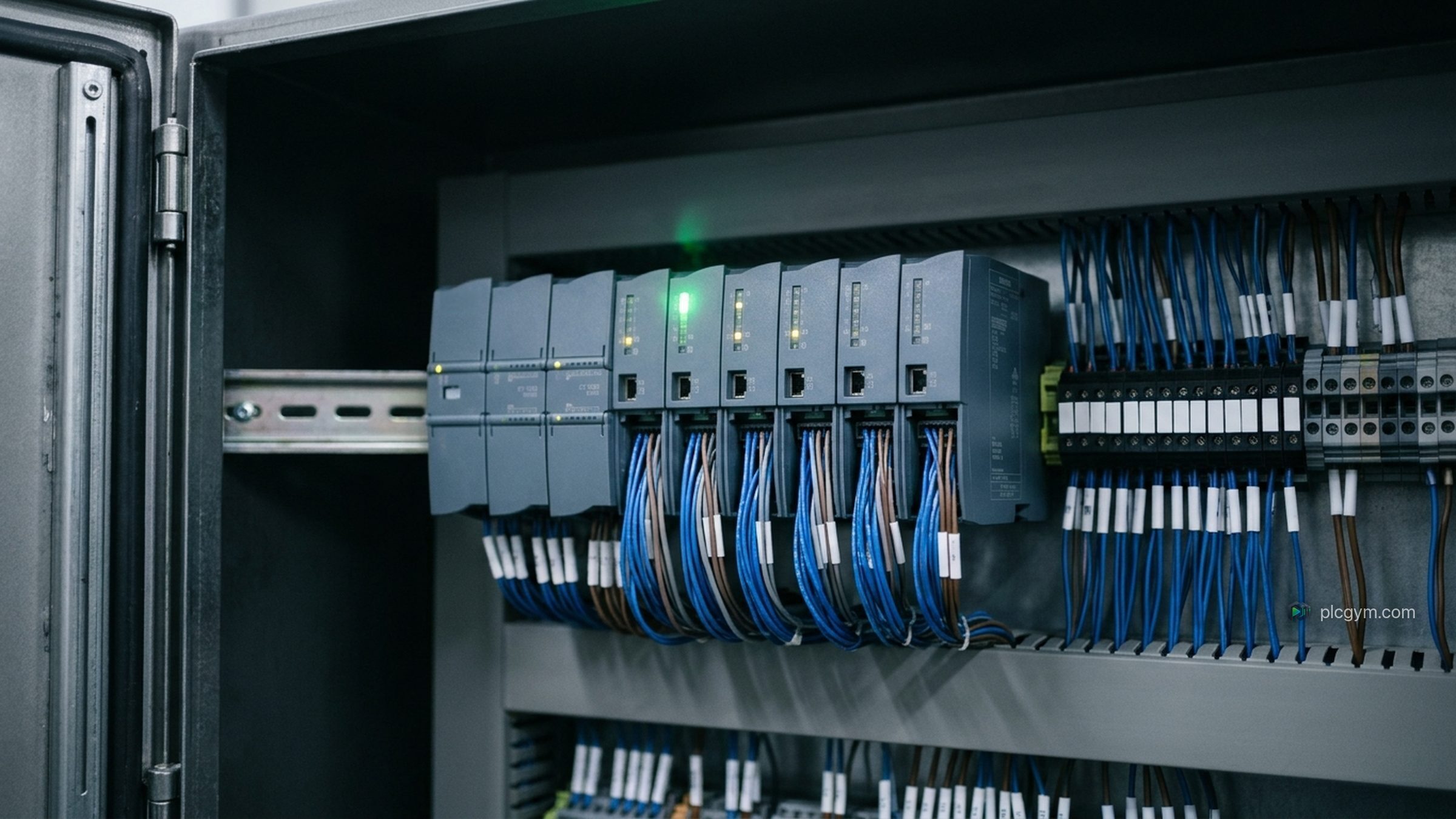
A PLC is a tough little industrial computer that runs a machine or part of a process. It sits in a cabinet, usually clipped onto a metal rail, with wires running to everything it needs to know about and everything it needs to control.
Those wires come in two kinds.
- Inputs tell the PLC what is happening. A push button, a sensor that sees a bottle, a float switch in a tank, a temperature reading.
- Outputs are what the PLC switches on and off. A motor, a valve, a warning lamp, a heater.
The program sits in the middle. It's a set of rules that says, in effect, "when these inputs are like this, set those outputs like that". Fill the tank until it's full. Start the pump when someone presses Start, and stop it when they press Stop. Open the drain valve once the batch has finished. Our glossary covers inputs and outputs in plain English if you want a refresher.
The scan: the idea everything else depends on
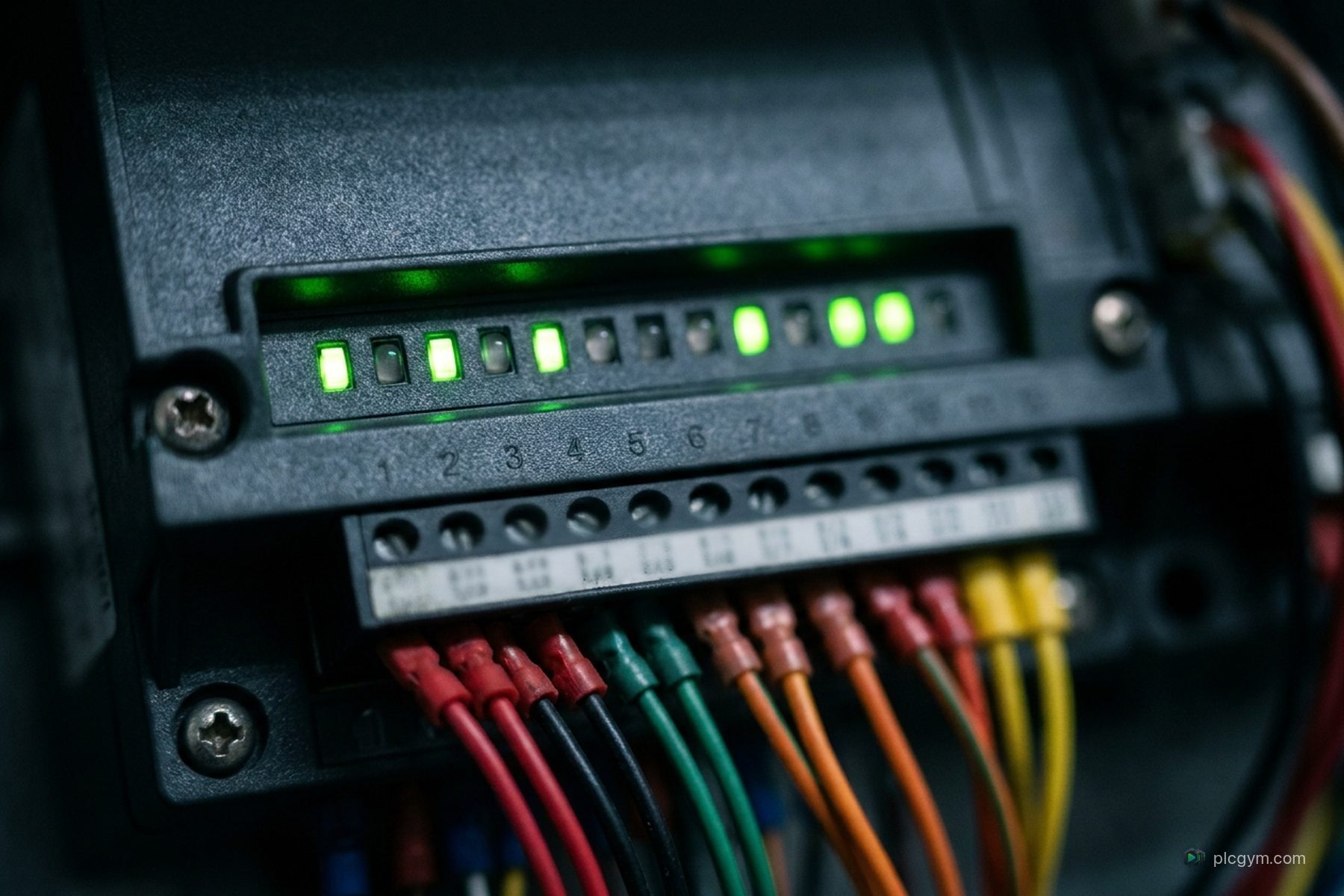
This is the part that trips most beginners up, me included. A PLC doesn't run your program once and wait. It runs it again and again, in a loop called the scan. Every scan has three steps.
- Read the inputs. The PLC takes a snapshot of every input at that moment.
- Run the program. It works through your rules from top to bottom, using that snapshot.
- Write the outputs. It sends the results out to the motors, valves and lamps.
Then it starts again. A real controller does this many times a second. In the PLC Gym simulator, one scan happens every 20 milliseconds, which is 50 times a second.
Why does this matter so much? Because it changes how you think about the code. You can't write "wait five seconds, then open the valve" the way you might in a normal programming language. The program has to finish and hand back control within a fraction of a second, every time. So if you want a delay, you use a timer that keeps counting across many scans, and you check it each time round. If you want the pump to keep running after someone lets go of Start, the program has to remember that it was started. That memory trick has a name, a seal in, and you'll meet it in almost every machine.
Once the scan clicks, a lot of PLC programming stops feeling strange.
Tags: names for everything
Every input, output and stored value in a PLC program has a name, called a tag. A tag might be called Start, TankFull or PumpOn. Good tag names are half the battle, because the person reading the code at three in the morning when a line has stopped wants to know exactly what each one means.
Tags also have a type. Most are simply TRUE or FALSE: is the button pressed, is the tank full, should the pump run. Others hold numbers, such as a tank level, a count of bottles or a temperature.
The languages you can write it in
There isn't one PLC language. There's a family of them, set out in an international standard called IEC 61131-3. The latest edition was published in 2025. It covers four languages that you'll see across most brands: two drawn and two written.
| Language | What it looks like | Good for |
|---|---|---|
| Ladder Diagram (LD) | Rungs between two rails, like an electrical drawing | On and off logic, interlocks, anything maintenance teams need to read quickly |
| Function Block Diagram (FBD) | Boxes joined by wires | Signals flowing through calculations, such as scaling a sensor reading |
| Structured Text (ST) | Typed code, a bit like Pascal | Maths, data, decisions with lots of branches |
| Sequential Function Chart (SFC) | Steps joined by transitions, like a flowchart | Processes that move through stages, such as fill, heat, drain |
An older text language called Instruction List was part of earlier editions. It was marked as deprecated in 2013 and dropped from the 2025 edition, though you might still bump into it on older equipment.
Each brand uses its own names. Siemens calls its versions LAD, FBD, SCL and GRAPH, all written in its TIA Portal software. Rockwell Automation, the company behind Allen-Bradley, calls them Ladder Diagram, Function Block Diagram, Structured Text and Sequential Function Chart, written in Studio 5000 Logix Designer. The ideas carry across. The details, menus and quirks don't always.
One rule, written two ways
Here's a classic rule: press Start and the pump runs, and keeps running after you let go. Press Stop and it stops. Stop always wins.
In ladder, it looks like this. Read it left to right. If power can flow from the left rail to the coil on the right, the coil switches on.
    Start         Stop                 PumpOn
----| |----+------|/|-----------------( )----
           |
    PumpOn |
----| |----+
The second branch is the clever bit. Once PumpOn is on, its own contact keeps the rung alive after Start is released. That's the seal in.
In Structured Text, the same rule is one line.
PumpOn := (Start OR PumpOn) AND NOT Stop;Same logic, two different ways of showing it. Neither is better. Ladder is easier to read at a glance when you're stood at a machine. Text is easier when the logic gets complicated. Most engineers end up comfortable with both, and our guides to ladder logic and Structured Text go into each one properly.
The software engineers use
On a real job, PLC code is written on a Windows laptop using the manufacturer's software, then downloaded into the controller over a network cable.
- Siemens: STEP 7 inside the TIA Portal, for controllers such as the S7-1200 and S7-1500. Siemens sells a Basic version and a fuller Professional version.
- Rockwell Automation: Studio 5000 Logix Designer, for CompactLogix and ControlLogix controllers. Its smaller Micro800 controllers use separate software called Connected Components Workbench, which has a free Standard Edition.
Both main packages are paid, licensed products, and both expect real hardware or a simulator to talk to. That's one reason a lot of learners stall early on. They've read about the scan and the languages, but they've nowhere to try it.
How the code gets tested
Nobody sensible writes PLC code and tries it for the first time on a live machine. A mistake can damage equipment or hurt someone. So engineers test first, usually in one of three ways.
- On a spare controller on the bench, with switches and lamps standing in for the real machine.
- In the vendor's simulator or emulator, which runs the program on a PC. Siemens has S7-PLCSIM and Rockwell has FactoryTalk Logix Echo. Our guide to PLC emulators and simulators explains the difference.
- Against a model of the process, sometimes called a digital twin, where a pretend tank fills and a pretend conveyor moves so the code has something realistic to react to.
That last one is what PLC Gym does in the browser. You write the code, press Run and watch a 3D pump, tank or filling line react, scan by scan. Automatic tests then check whether it did what the job asked.
How to start learning, step by step
If I were starting again, this is the order I'd take it in.
- Get the ideas first. What inputs and outputs are, and why the scan matters. Our free basics chapters take about an hour in total.
- Write your first few lines. Not a big project. Open a valve, fill a tank, start and stop a pump. The first mission is exactly that.
- Learn the patterns that come up everywhere. The seal in, interlocks, and timers. These three alone cover a surprising amount of real machine logic.
- Pick a brand, then learn the other one. Learn Siemens or Allen-Bradley well first, then spend time getting comfortable with the other. The ideas carry over, so the second one takes far less time.
- Practise finding faults. A lot of real work is changing and fixing code somebody else wrote. Spotting why a pump won't start is a skill in its own right.
If you'd rather have that laid out for you, our PLC programming course follows the same order, in both Siemens and Rockwell languages.
The important thing is to get your hands on code early. Reading about the scan is useful. Watching a tank overflow because you forgot to stop the fill valve teaches you far more, and it's a lot cheaper in a simulator.
Sources
- IEC 61131-3:2025, Programmable controllers, Part 3: Programming languages, International Electrotechnical Commission
- IEC 61131-3, Wikipedia, on the languages and the removal of Instruction List
- STEP 7 in the TIA Portal, Siemens
- Logix 5000 Controllers IEC 61131-3 Compliance, Rockwell Automation
- Design and Configuration Software: Connected Components Workbench, Rockwell Automation
- S7-PLCSIM help, Siemens
- FactoryTalk Logix Echo, Rockwell Automation
- Why you should use normally closed for stop buttons, PLC Academy
Practise it
Try it on a working machine
Write real Siemens or Rockwell code in the free online PLC simulator and watch a 3D pump, tank or filling line do exactly what you told it. Nothing to install.
Read next
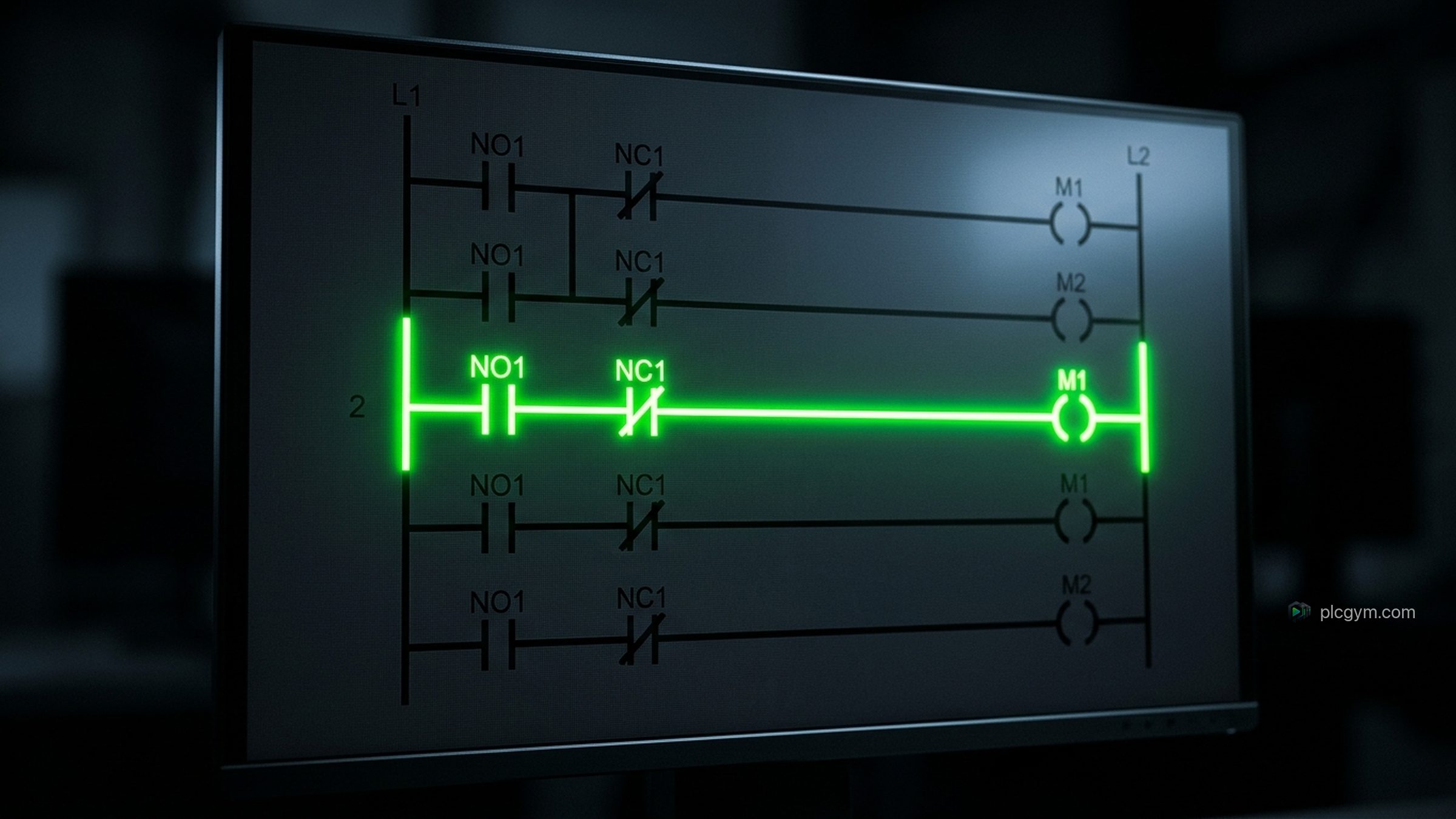
Learn ladder logic: rungs, contacts and coils explained
Learn ladder logic from scratch: how rungs, contacts and coils work, how to build a start and stop circuit, and the mistakes beginners make.
Read the guide
Structured Text programming: a beginner's guide
Structured Text programming for beginners: IF, CASE, FOR, timers and the scan, with examples for Siemens SCL and Rockwell Studio 5000.
Read the guide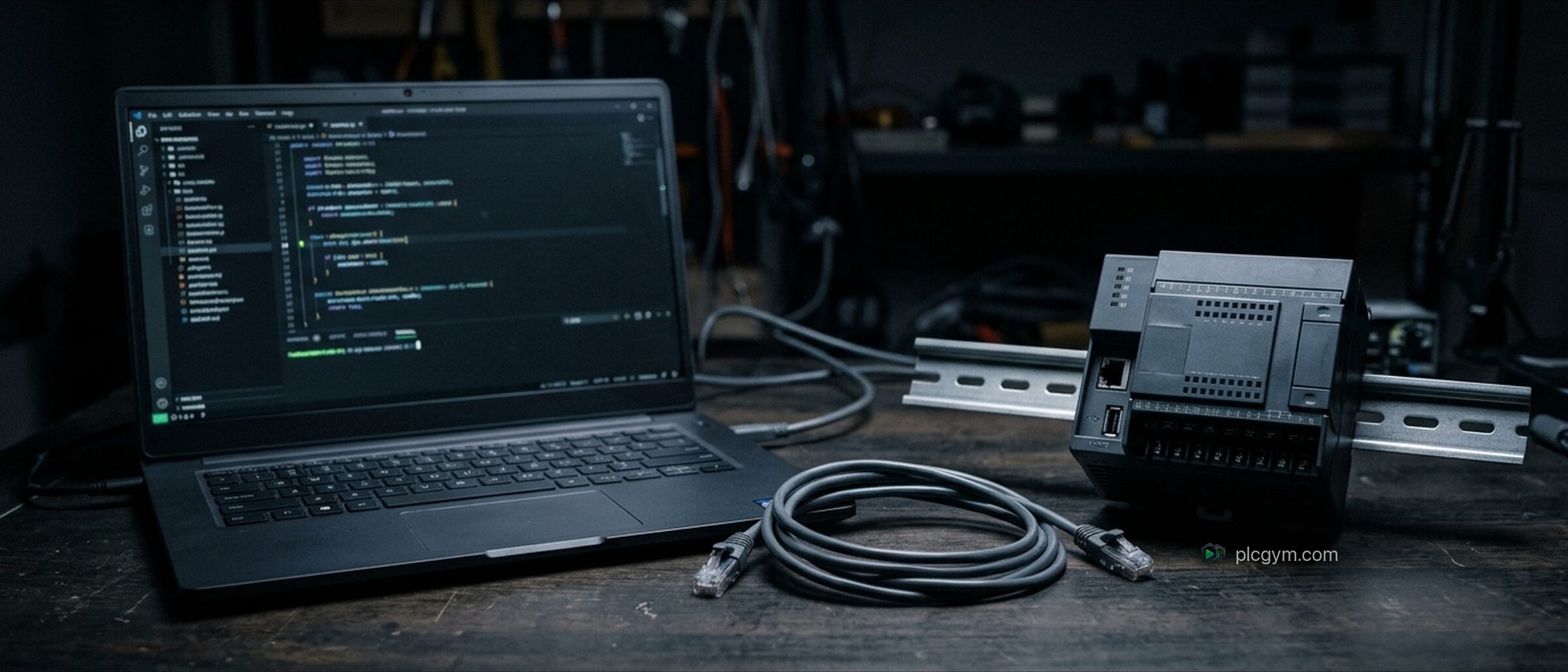
PLC emulator or simulator: what's the difference?
PLC emulator or simulator? What each one copies, the tools Siemens and Rockwell offer, and which you need to learn or test PLC code.
Read the guide